



Have you ever created the perfect vocal chain with just the right amount of EQ, compression, and reverb, and then wished you could instantly apply it to another track without manually rebuilding the entire thing? Or maybe you’ve dialed in a delay setting on one synth and wanted to quickly use it on another?
Manually copying settings is a slow and tedious process that can kill your creative momentum. But here’s the easiest way to clone mixer channels and individual plugins in FL Studio—a super quick workflow hack that you’ll use in every single session.
How to Instantly Clone an Entire Mixer Channel
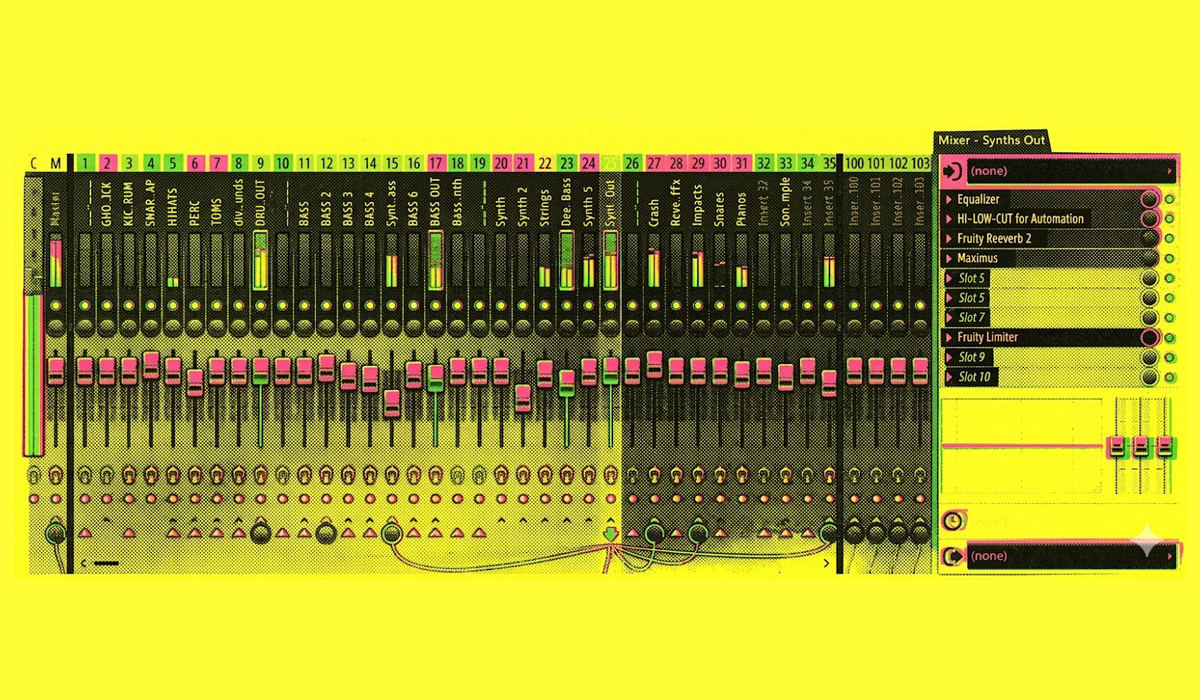
This first method allows you to copy an entire mixer track—including all its plugins, settings, fader level, and even its color and name—to any other track in seconds.
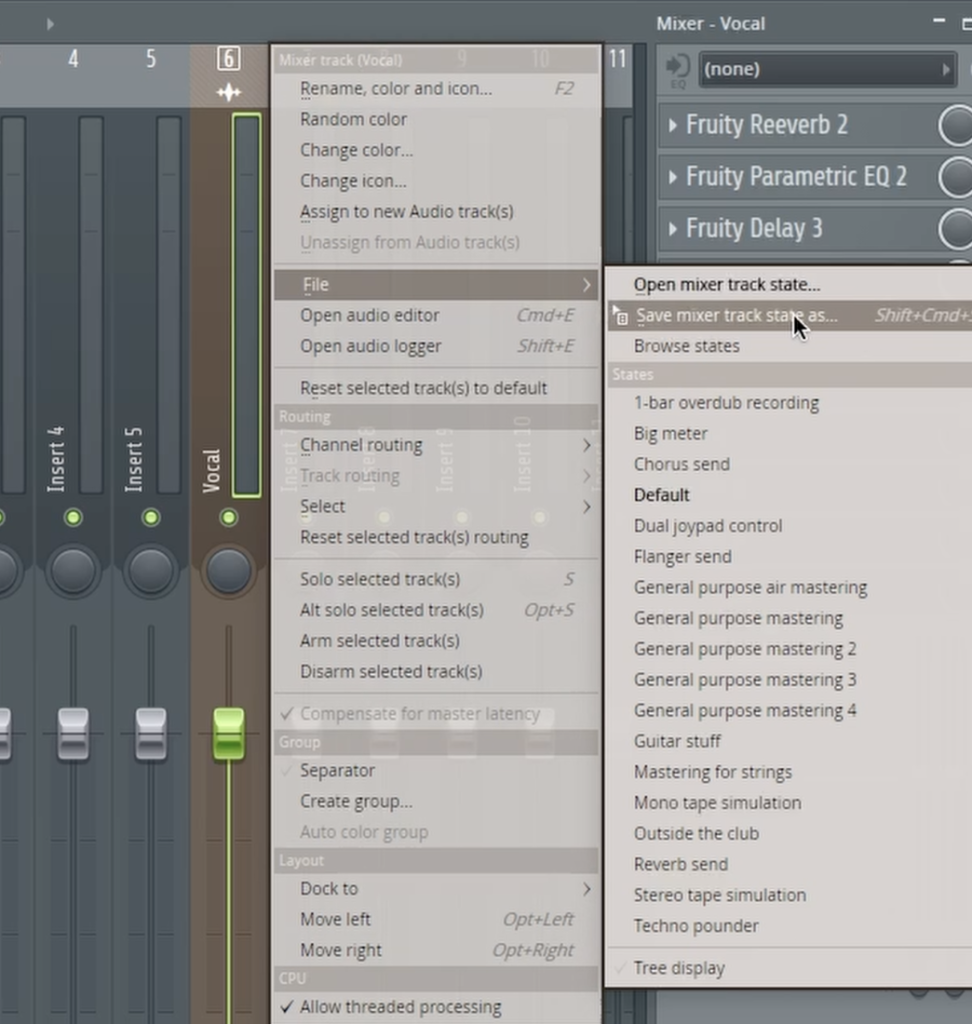
- Right-click on the mixer channel you want to clone.
- In the context menu, navigate to the “File” submenu.
- Click and hold your mouse on the option “Save mixer track state as…”
- While still holding the mouse button, simply drag it over to any other mixer channel and release.
That’s it! The entire channel state is instantly copied. This is perfect for creating parallel processing chains or applying a consistent effects setup across multiple tracks.
How to Clone Individual Plugins
What if you only want to copy a single plugin and its settings, not the entire channel strip? The process is just as easy.
- Open the plugin you want to copy.
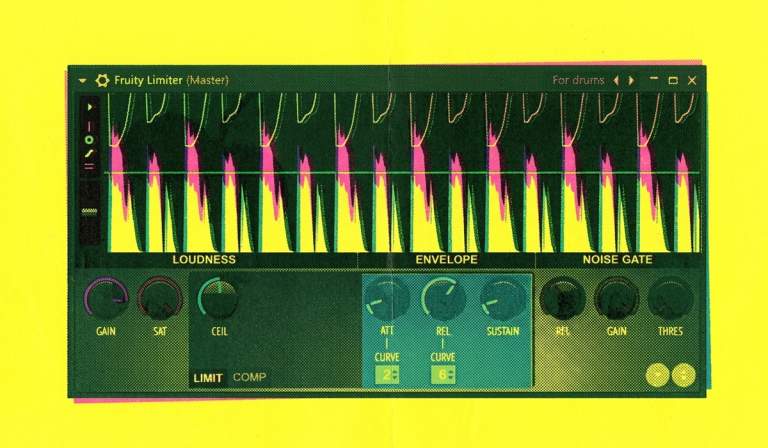
- Click the dropdown arrow in the top-left corner of the plugin window.
- Click and hold on the “Save preset as…” option.
- Drag this onto any plugin slot on any other mixer channel.
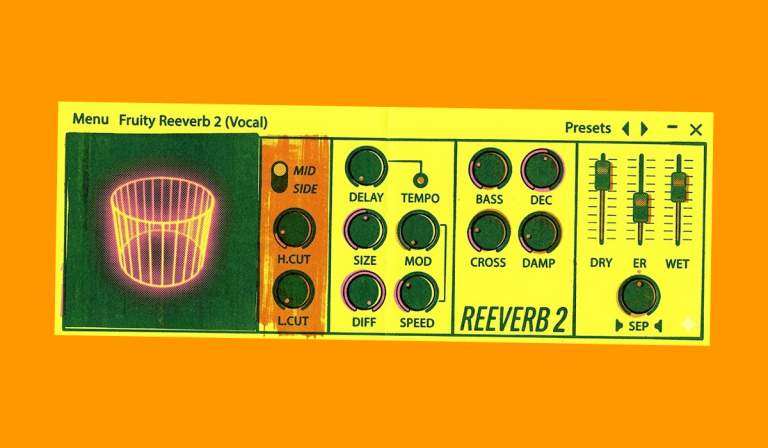
This will create an exact copy of that plugin with all of its settings intact, without affecting any other part of the destination channel. It’s an incredibly fast way to share specific EQ curves, compressor settings, or reverb presets across your project.
To see this lightning-fast drag-and-drop workflow in action, be sure to watch the full video!