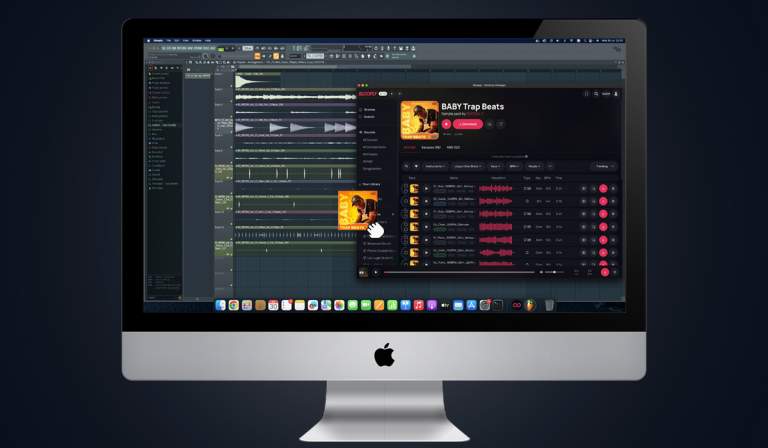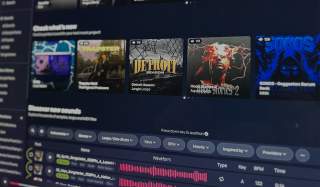



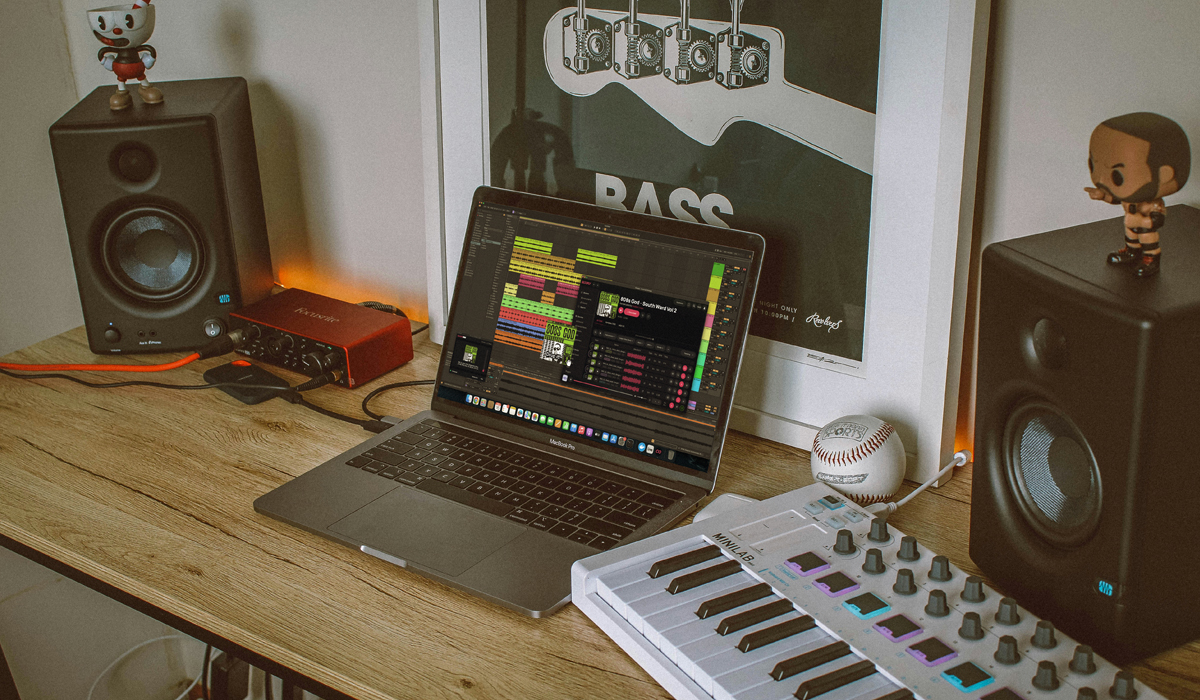

Slooply Bridge is a VST3 / AU plugin that connects the Slooply Desktop app with your DAW, allowing you to preview samples directly in the key and tempo of your project — and then bring them straight into your session.
With Bridge, you can test sounds in real musical context before committing to them. By hearing samples exactly the way you plan to use them, you can make better creative decisions, work faster, and stay focused on what really matters: making music.
Bridge is included with the Slooply Desktop app, and the setup is quick and straightforward. To get started, make sure you’re running the latest version of the Slooply Desktop app. Once updated, Bridge will be available in your library under the Plugins section.
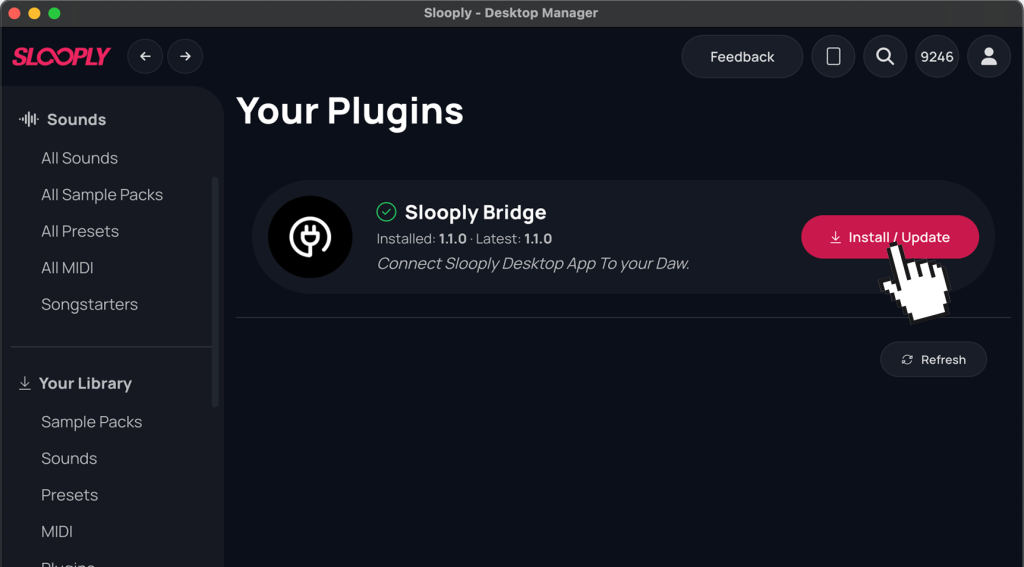
Connecting Bridge to your DAW
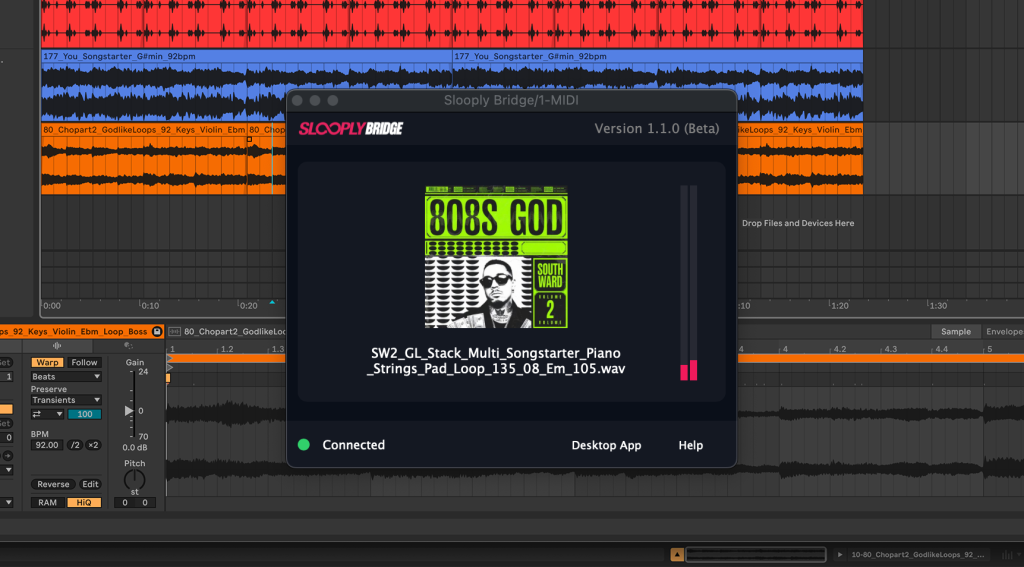
Open your DAW and insert the Slooply Bridge VST3/AU plugin on a MIDI track. Once the plugin is loaded, switch to the Slooply Desktop App and click the connection button located in the bottom-right corner of the interface.
When the connection is successfully established, the button will light up green and Bridge features will become available. You’ll be able to change and lock the key of your samples to match your project, as well as use reverse playback to audition samples played backwards.
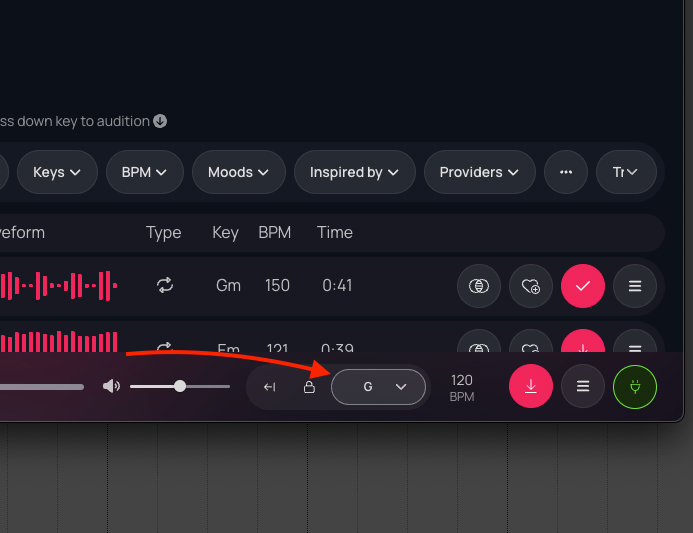
Transpose samples to match your track
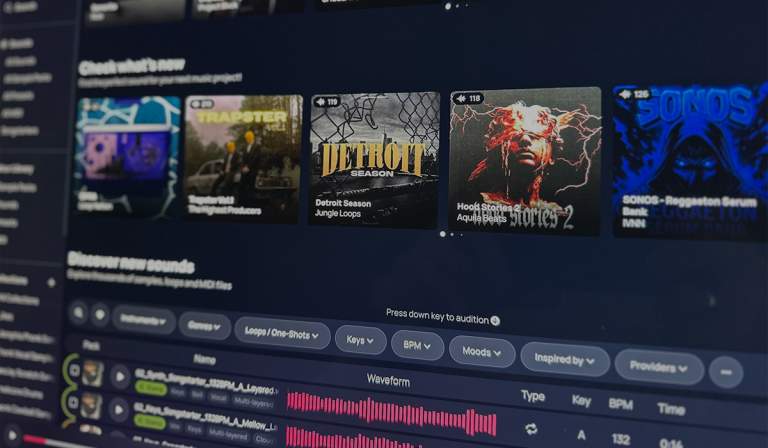
To access Bridge’s transposition features, open the Bridge controls inside the Slooply Desktop app and navigate to the Key section. From here, you can match the app’s key to your DAW session so that every previewed sample plays harmonically in tune with your project.
This doesn’t just help with accuracy – it also encourages experimentation. You can instantly flip samples into different keys and explore new harmonic ideas without stopping your workflow or manually processing audio.
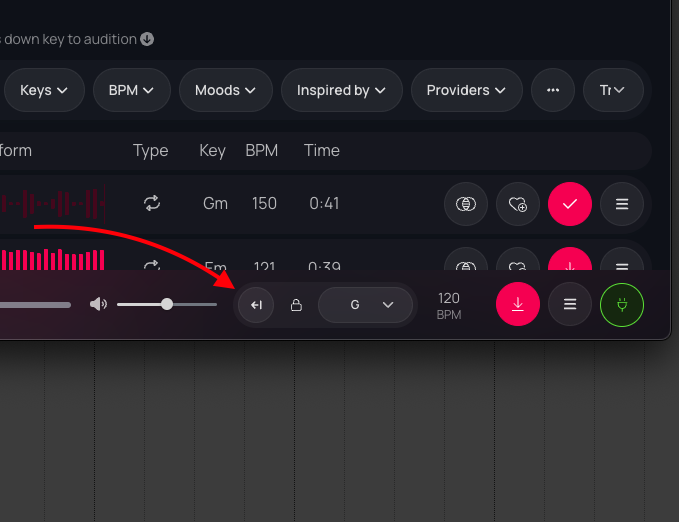
Discover samples with reverse playback
Slooply introduces reverse playback as part of the Bridge experience. With a single click, you can audition samples played backwards, revealing completely new textures, transitions, and creative possibilities.
Reverse playback is perfect for discovering hidden character in melodies, atmospheres, vocals, and FX. Try it out – you might be surprised how familiar samples can take on an entirely new life when played in reverse.
Copy or drag modified samples directly into your DAW
One of Bridge’s most powerful features is the ability to copy or drag fully processed samples straight into your DAW.
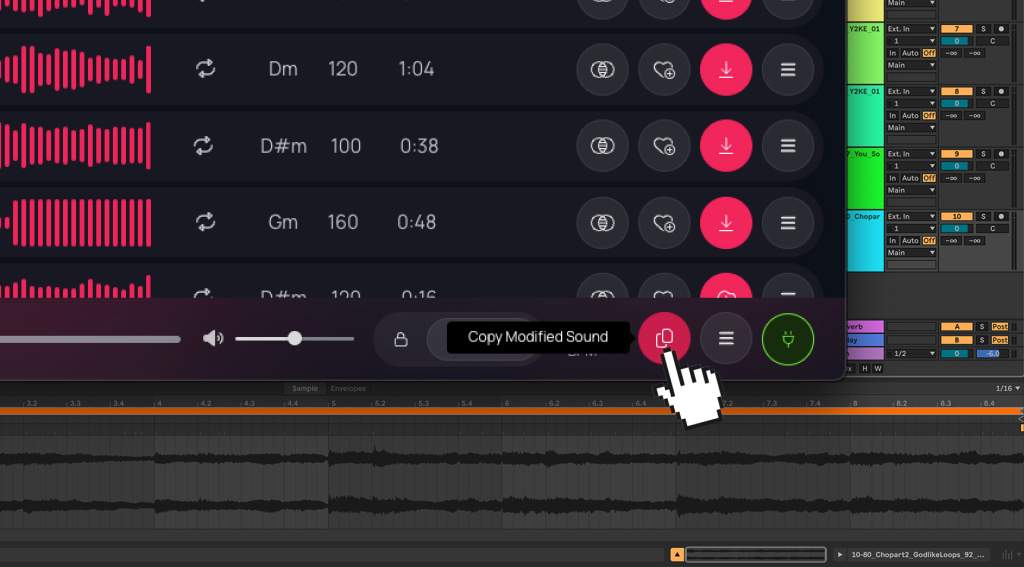
Once a sample is downloaded or modified (key, tempo, reverse playback), simply use the pink action button to copy or drag the sound into your project.
You can also paste it manually using:
- Mac: Command + V
- Windows: Ctrl + V
The audio file you bring into your DAW already has pitch-shifting and time-stretching applied, ensuring perfect playback that matches your session instantly — no extra steps required.
Get started
To use Bridge, download or update the Slooply Desktop App to the latest version. Once installed, Bridge will be available in your library, ready to transform the way you preview and use samples in your DAW.