




Working with loops and samples is a cornerstone of modern music production. But one of the most common frustrations is when you find the perfect drum loop or melodic sample, only to discover its tempo doesn’t match your project. A drum loop recorded at 97 BPM will sound messy and off-beat when played in a 100 BPM project.
While you could manually time-stretch and chop the sample to fit, there’s a much faster and more accurate solution built right into FL Studio that many producers overlook.
How to Automatically Fit Your Sample to Tempo
This simple process involves telling FL Studio the original tempo of your sample. The software will then do all the heavy lifting for you, perfectly syncing it to your project’s grid.
- Drag your sample into FL Studio to open it in the Sampler channel.
- In the Sampler window, locate the “Time” knob within the “Time stretching” section.
- Right-click on the “Time” knob.
- From the dropdown menu that appears, select “Auto detect.”
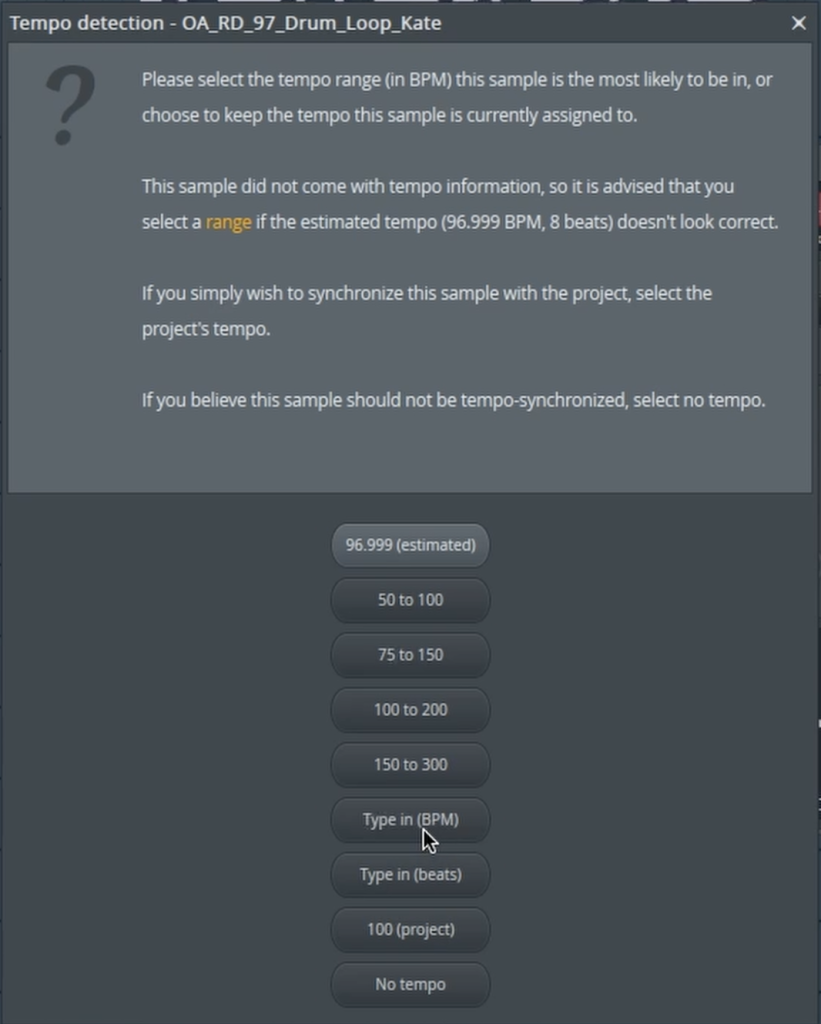
- A new “Tempo detection” window will pop up. From the options, choose “Type in (BPM)”.
- Enter the original BPM of your sample. In the video’s example, the drum loop is 97 BPM. After typing it in, press Enter.
Instantly, you’ll see the sample’s waveform stretch or compress to perfectly align with your project’s tempo. It now fits the grid perfectly.
Fixing the Unwanted Pitch Shift
There’s one small side effect to this process: you might notice that the pitch of your sample has changed. This is because FL Studio’s default time-stretching mode, “Resample,” alters the pitch as it changes the speed.
Fortunately, the fix for this is just as simple.
- In the same Sampler window, go to the “Mode” dropdown menu.
- Change the mode from “Resample” to a pitch-preserving algorithm. Options like “Stretch” or “Stretch Pro” are excellent choices for maintaining the original tonal quality of your sample.
Once you select the new mode, your sample will snap back to its original pitch while remaining perfectly in time with your track. It’s the best of both worlds—perfect timing and perfect pitch, achieved in just a few clicks.
To see a clear visual demonstration of this entire process, be sure to watch the full video!